Your payment spreadsheet, ready for QuickBooks
Check an Excel or CSV of invoice and bill payments: errors caught, checks grouped, before QuickBooks Online.
Check my payment file freeNo sign-up. Your file stays in your browser.
- 1Check your file
- 2Fix flagged rows
- 3Record in QuickBooks early access

How it works
Load your list
Excel or CSV, one payment per row.
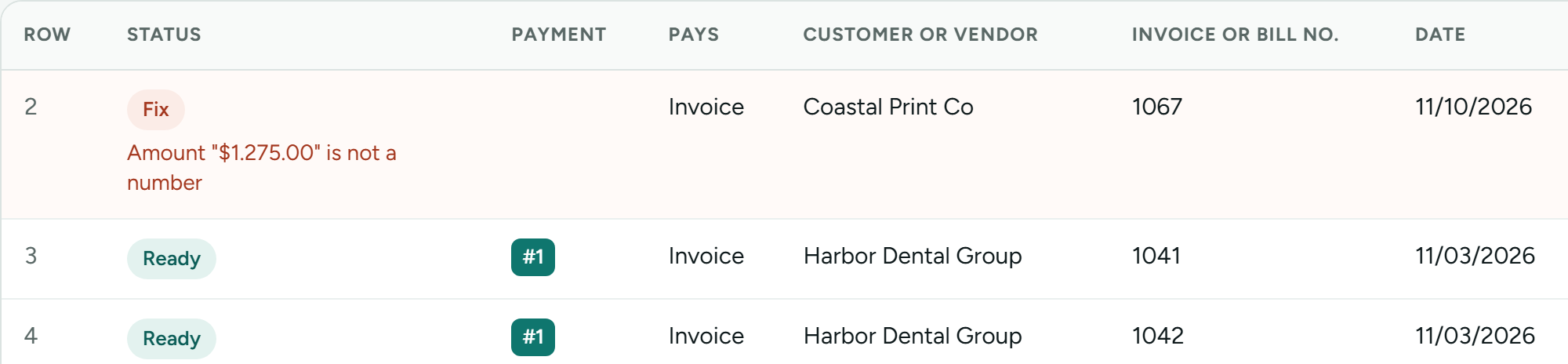
Fix the flagged rows
Bad dates, amounts and repeats are listed.
Record in one run
Each payment lands on its invoice or bill.
One check, three invoices, one payment
Rows with the same customer, date, account and ref no. are joined, the way you would enter that check by hand.
- Customer payments and bill payments in one file
- $, £ and € amounts, decimal commas, any date style
- Download the plan as CSV before anything is recorded
Pay when the connection opens
Import Pass
7 days, up to 2,000 payments, one company
Monthly
Unlimited payments, up to 5 companies
Checking files stays free.
Questions
Can QuickBooks Online import payments from a CSV file?
Not with the built-in import: it does not take customer payments or bill payments, so each payment is entered by hand (higher plans may offer a spreadsheet sync). Paycairn reads your Excel or CSV file and records the payments in one run.
What does my file need?
One row per payment with the invoice or bill number, the payment date and the amount. Customer or vendor, account, payment method and ref no. are optional. A Type column can mix invoice payments and bill payments in one file.
Can one check pay several invoices?
Yes. Rows with the same customer, date, account and ref no. become one QuickBooks payment that covers each of those invoices, the way you would enter one check.
Is my file uploaded when I check it?
No. The check runs in your browser and nothing in the file is sent to us. Recording payments in QuickBooks needs the connection, which opens soon.
See your payments before QuickBooks does
Free check now. Join the list for the QuickBooks connection.
Check a payment file free